Image
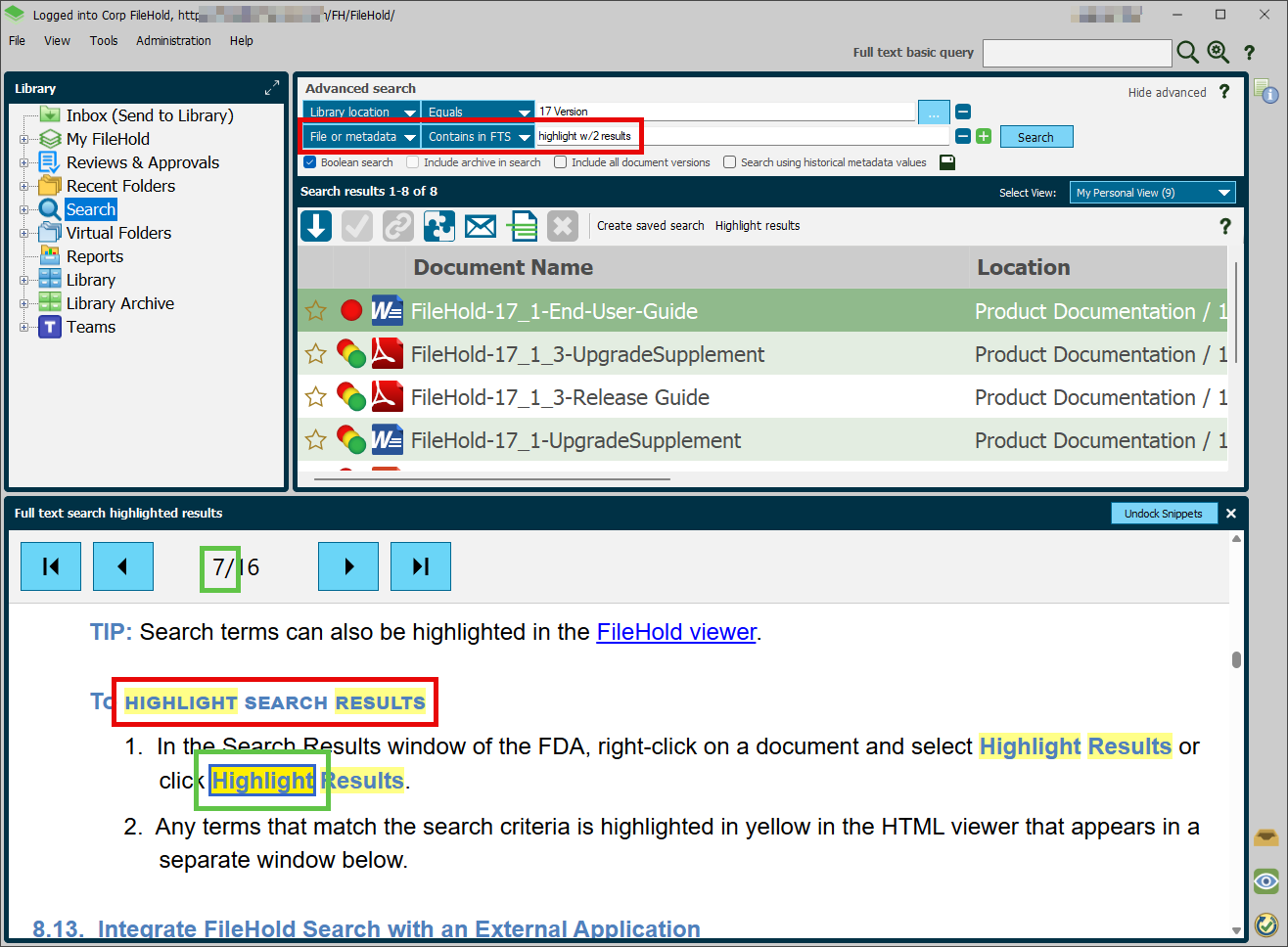
When a search finishes executing, the results will appear as a list of documents. These results are very similar to other lists of documents, such as a folder list. Unlike a folder, the total number of documents in the results is controlled by the FileHold administrator. By default, 5000 documents is the maximum that will be returned from a search.
For the full clients, the results will be presented in a default view that is set by an administrator, an end user or saved with a saved search. As with other document lists, the view can be modified with the right permission.
Buttons for operating on the documents in the results are presented as they are for a folder, but there are no buttons to add new documents as the search results are not a location. Search results have an additional button Save as Saved Search. This allows the search criteria that generated the search results to be saved for future re-use.
For the desktop client (FDA), there is one additional button: Highlight Results. This button is enabled when a document is selected and will let a user see how specific text from any full text search criteria is related to the file contents. Press Highlight Results and a simple viewer will open with words highlighted in yellow where there was a match to the search.
The highlight option is only useful when one of the full-text index file search types is used: File and metadata, File only, Metadata only or Raw query. Highlight results will only show values that matched the document contents, including fields that were indexed from the file. It will not show results that matched metadata fields or any text matched using the xfilter operator. When a compound file is displayed, like a ZIP archive or attachments to an email message, all associated files will be shown in the viewer.
When you search using the file and metadata criteria, a convenience search is enabled when opening the FileHold viewer from the search results. In this case, any terms used will be given to the viewer for an "any words" search. For simple cases, it will work like highlight results, but it works in both the web client as well as the FDA. As this is just a simple copy and paste of the values in the search criteria, it may require an edit in the search bar if boolean operators, quoted text or more complex expressions were used.