Image
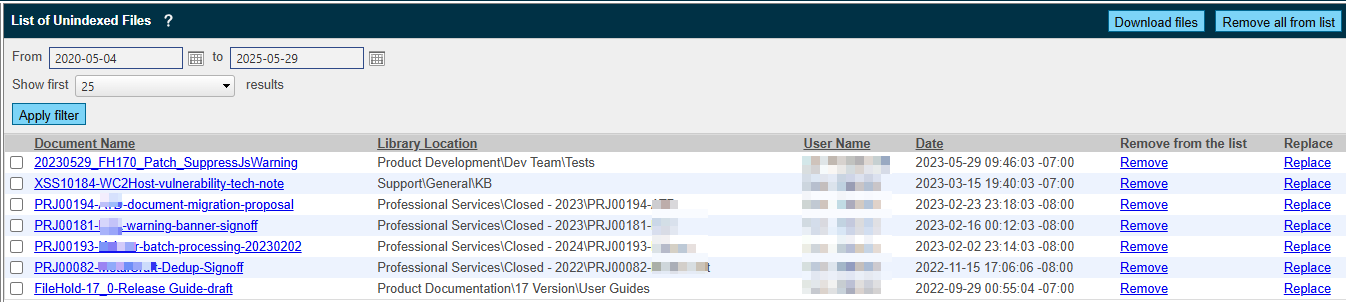
The full-text search engine may not be able to index files that are encrypted, digitally secured, or damaged. The List of Unindexed Files allows you to see the files that cannot be indexed. You can download files directly from the list, remove them from the list, or replace them with new files.
For example, a PDF can be encrypted/secured so that the text inside the document is locked/encrypted and cannot be searched. Another example is a Microsoft Excel worksheet that is protected with a password or macro-level security. In these cases, the search engine may be blocked from indexing the contents of the file.
Even though a file is unindexed by the full-text search engine, you can still perform all normal operations on it other than a full-text search of its contents.
You can disable unindexed file alerts in the System Configuration > Full Text Settings if you do not wish to receive these daily reports. You can also change who these reports are sent to, and you can read about disabling or changing the recipients of the report.
Note that any file types that have been excluded from indexing will not be displayed in the List of Unindexed Files.